---
title: Joint Torque Sensor(ATSB)
description: Joint Torque Senosr(ATSB)
---
[Skip to content](https://help.aidinrobotics.co.kr/en/joint-torque-sensor-atsb#main-content)
- [English](https://help.aidinrobotics.co.kr/en/joint-torque-sensor-atsb)
- [한국어 - 대한민국 (Korean - South Korea)](https://help.aidinrobotics.co.kr/관절-토크-센서-atsb)
English
Show submenu for translations
[](https://help.aidinrobotics.co.kr/?hsLang=en)
- [Full Manual](https://help.aidinrobotics.co.kr/en/full-manual)
- [Install Guide](https://help.aidinrobotics.co.kr/en/install-guide)
- [Contact Us](https://www.aidinrobotics.co.kr/en/contact)
Open main navigation
Close main navigation
- [Full Manual](https://help.aidinrobotics.co.kr/en/full-manual)
- [Install Guide](https://help.aidinrobotics.co.kr/en/install-guide)
- [Contact Us](https://www.aidinrobotics.co.kr/en/contact)
- - [English](https://help.aidinrobotics.co.kr/en/joint-torque-sensor-atsb)
- [한국어 - 대한민국 (Korean - South Korea)](https://help.aidinrobotics.co.kr/관절-토크-센서-atsb)
English
Show submenu for translations
- [Official Site](https://www.aidinrobotics.co.kr/en)
[Official Site](https://www.aidinrobotics.co.kr/en)
How can we help you?
- There are no suggestions because the search field is empty.
1. [AIDIN ROBOTICS Knowledge Base](https://help.aidinrobotics.co.kr/en?hsLang=en)
2. [Full Manual](https://help.aidinrobotics.co.kr/en/full-manual?hsLang=en)
May 13, 2026
# Joint Torque Sensor(ATSB)
## ✅ revision date: 2026.04.29
### 1. Introduction
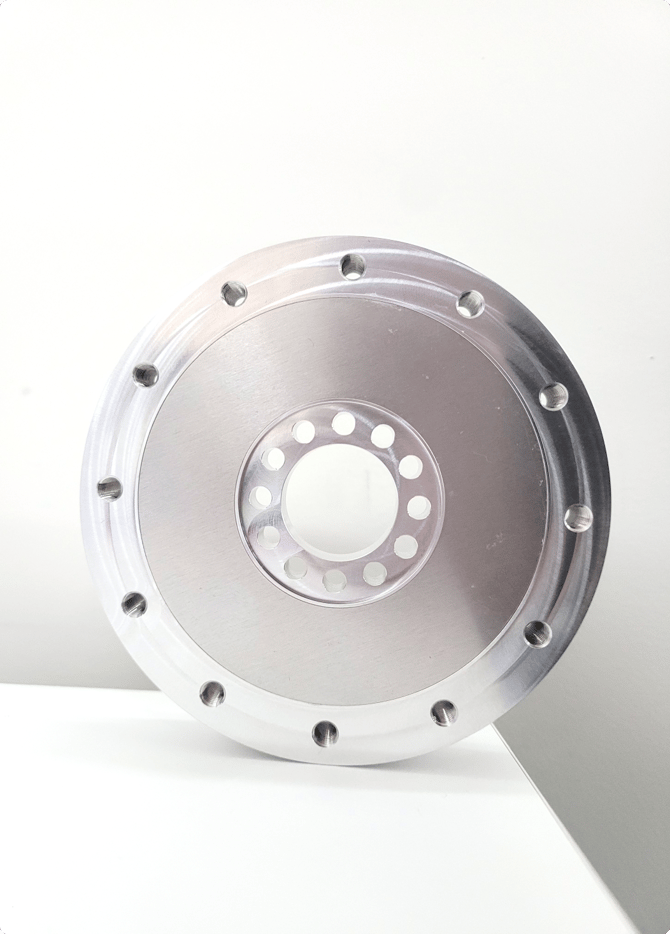
#### 1.1 Joint Torque Sensor, ATSB series
#### 1.2 Key features
- Ultra-Thin torque sensor
- All-in-one sensor (No additional amplifier)
- **Two Channel ouput data for safety**
- **Overloading 300%**
- Digital output communications (CAN)
- Easy installation and data collection
- Collaborative robot, industry application, automation
#### 1.3 Specs.
| Index | Unit | ATSB 50 | ATSB 100 | ATSB 200 | ATSB 400 |
| --- | --- | --- | --- | --- | --- |
| Operating voltage | VDC | 5 | | | |
| Max. safe excitation voltage | VDC | 10 | | | |
| Nominal torque range(TN) | Nm | 50 | 100 | 200 | 400 |
| Overload (related TN) | % | 300 | | | |
| Resolution | Nm | 0.01 | 0.015 | 0.025 | 0.05 |
| Noise-free resolution (STD) | Nm | 0.03 | 0.05 | 0.1 | 0.2 |
| Dimensions | mm | D84 x H14 | D100 x H16 | D100 x H18 | D120 X H20 |
| Weight | g | 120 | 190 | 210 | 310 |
| Sample rate | Hz | 1,000 | | | |
| Temperature | | 10-50℃ | | | |
| Interfaces | | CAN(2.0 A/B) | | | |
| Connector | | 4 PIN VCC / GND / CAN\_H / CAN\_L | | | |
#### 1.4 Flyer
[\[AIDIN ROBOTICS\] ATSB Series\_Flyer\_EN.pdf](https://help.aidinrobotics.co.kr/hubfs/%EC%97%90%EC%9D%B4%EB%94%98%20%EB%A6%AC%ED%94%8C%EB%A0%9B/%5BAIDIN%20ROBOTICS%5D%20ATSB%20Series_Flyer_EN.pdf?hsLang=en)
### 2. Installation Guide
#### 2.1 Components
- Torque sensor 1 EA
- No separate components other than special order (integrated cable)
#### 2.2 Mounting
- **Required to tighten with appropriate torque for each bolt.**
- When disassembling the sensor's own bolts, **performance is not guaranteed** and **A/S is not possible.**
Be careful of cable cutting and excessive pulling.
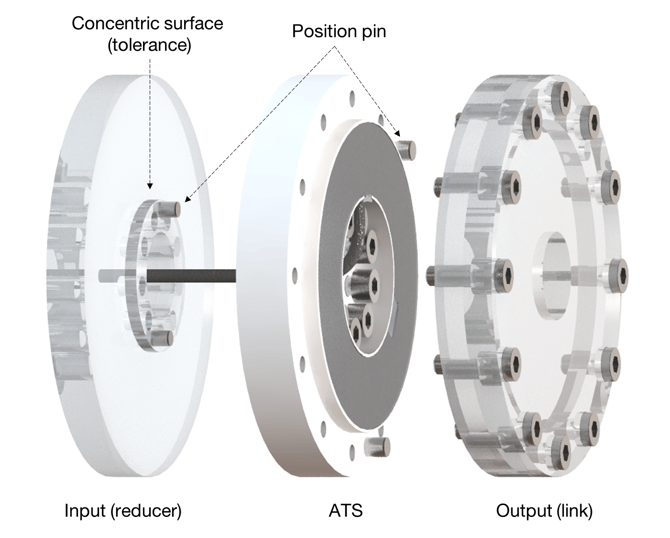
- The lower fastening part is a counterbore, and the upper fastening part is composed of a tap.
- Example of torque sensor connection (the thickness of the part connected to the top is recommended to be at least 10t)
- Do not apply pressure to the upper and lower covers.
- Appropriate tightening torque table for each bolt
| Bolt | Tightening torque | T**orque wrench example** |
| --- | --- | --- |
| M3 | 20 kgfcm | 100QL-MH, 50QL-MH |
| M4 | 45 kgfcm | 100QL-MH, 50QL-MH |
| M5 | 75 kgfcm | 100QL-MH, 150QL-MH |
| M6 | 120 kgfcm | 150QL-MH, 225QL-MH |
💡 If the tightening torque is not observed, data may not be output properly.
We recommend tightening with an appropriate torque using a torque wrench.
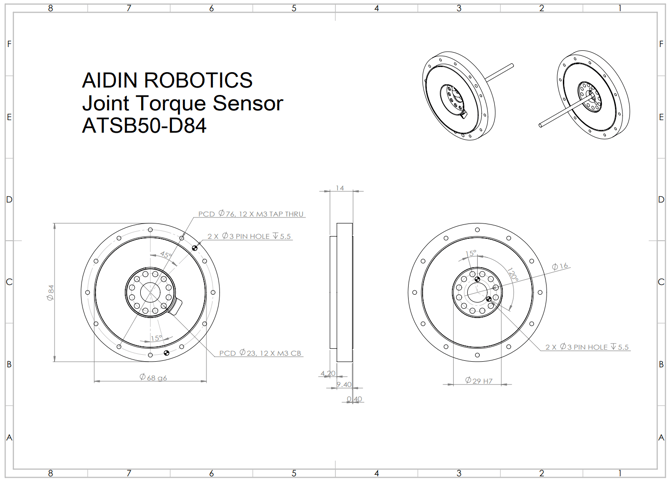
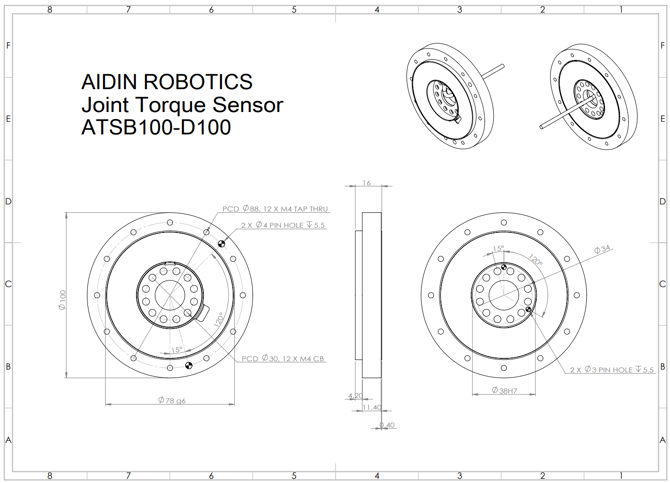
**2D drawing**
- ATSB50-D84
- ATSB100-D100
- ATSB200-D100
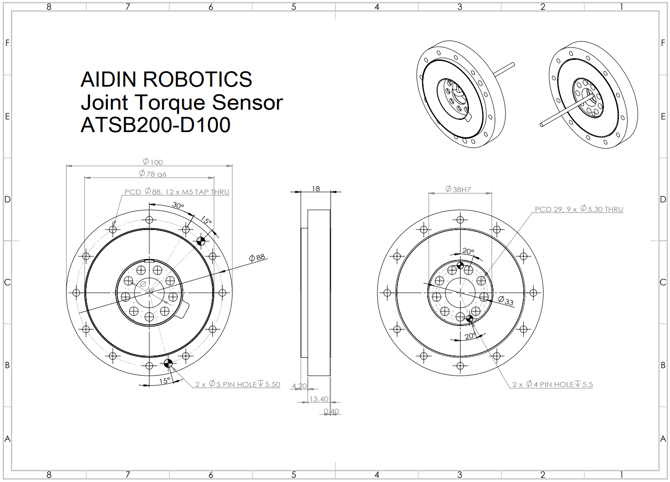
- ATSB400-D120
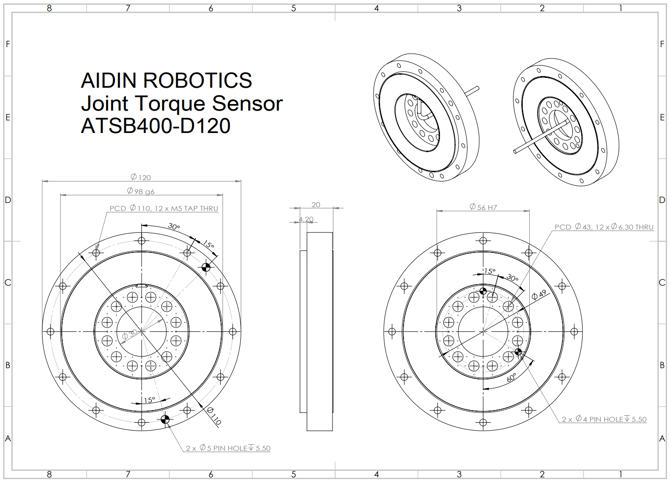
[ATSB\_SERIES\_2D\_Drawings.zip](https://help.aidinrobotics.co.kr/hubfs/%EC%97%90%EC%9D%B4%EB%94%98%20%EB%8F%84%EB%A9%B4/ATSB_SERIES_2D_Drawings.zip?hsLang=en)
[ATSB\_SERIES\_3D\_CAD.zip](https://help.aidinrobotics.co.kr/hubfs/%EC%97%90%EC%9D%B4%EB%94%98%20%EC%8A%A4%ED%85%9D%ED%8C%8C%EC%9D%BC/ATSB_SERIES_3D_CAD.zip?hsLang=en)
#### 2.3 Wiring
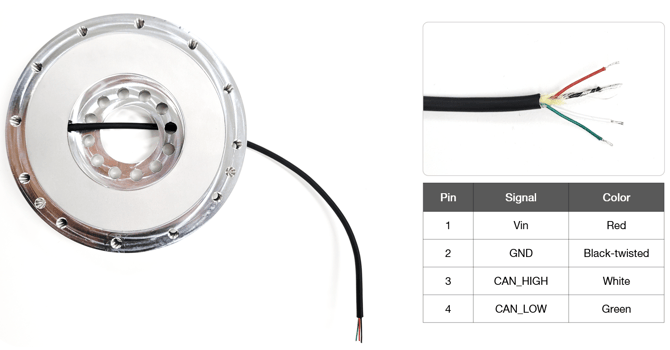
- Pinout 4pin (CAN\_H, CAN\_L, V, GND)
- Apply appropriate operating voltage to Vin (red) (5-10 V)
- Connect GND (black) and shield (copper wire)
- 120 ohm termination resistance is required between CAN\_H (white) and CAN\_L (green)
#### 2.4 Communication
- CAN protocol
- CAN 2.0A
- Baud rate: 1Mbps
- Number of Data: 2 Bytes
- sampling rate 1kHz
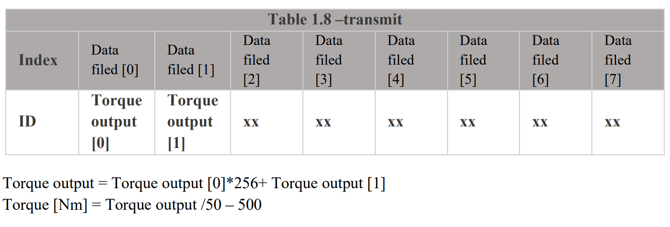
- CAN data output
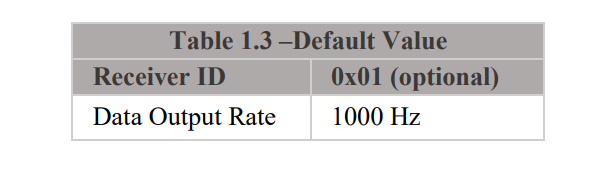
- The default ID is 0x01
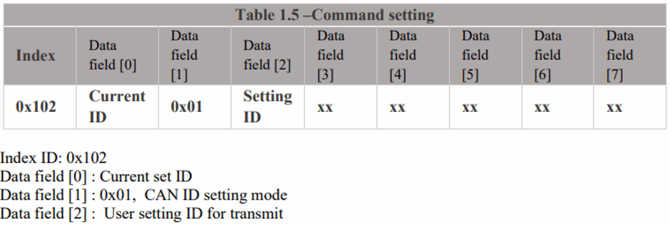
- CAN ID Setting mode
- ex) Change ID to 0x0A: ID 0x102, Data 01 01 0A (hexadecimal)
#### 2.5 Sample program
- USB-to-CAN device driver installation
- You can use other CAN support boards, but you must use an IXXAT converter to use the provided sample program.
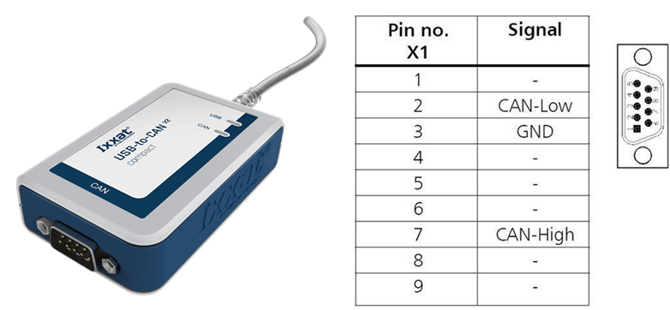
[USB-to-CAN V2 (ixxat.com)](https://www.ixxat.com/products/products-industrial/can-interfaces/usb-can-interfaces/usb-to-can-v2-professional?ordercode=1.01.0281.12001), used version: 1.01.0281.11001
[Downloads and Documentation for Ixxat Products](https://www.ixxat.com/technical-support/resources/downloads-and-documentation?ordercode=1.01.0281.12001), **VCI V4** - Windows 11, 10, 8, 7 \[Driver, canAnalyser-Mini, Manuals, LabView and other add-ons\]\*
\*Check VCI V4 during installation and reboot PC after installation.
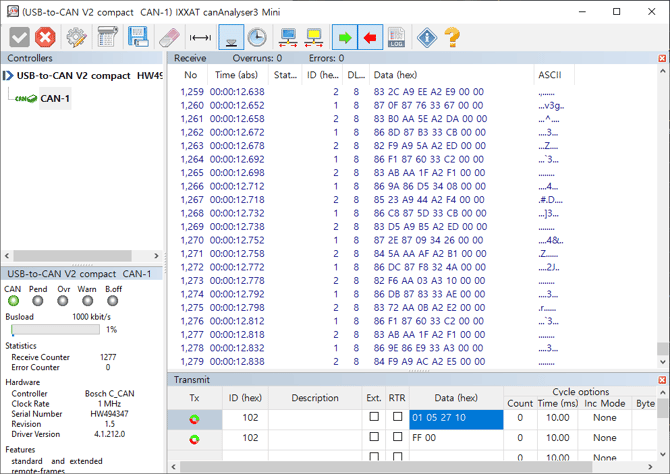
- IXXAT CAN monitor
- CanAnalyzer3 Mini
windows key→ IXXAT folder → IXXAT CanAnalyzer3 Mini
- Sample program provided by Aidin Robotics
- Install the IXXAT CAN VCI V4 and installer
[Installer.zip](https://help.aidinrobotics.co.kr/hubfs/%EC%97%90%EC%9D%B4%EB%94%98%20%EC%9D%B8%EC%8A%A4%ED%86%A8%EB%9F%AC%20%EC%84%A4%EC%B9%98/Installer%202.zip?hsLang=en)
- Sample program
- After connecting the sensor, run ATS\_sample\_program.exe
- [ATS\_sample\_program\_v2.zip](https://help.aidinrobotics.co.kr/hubfs/%EC%97%90%EC%9D%B4%EB%94%98%20%EC%84%BC%EC%84%9C%20%EC%97%B0%EA%B2%B0%ED%9B%84%20%EC%8B%A4%ED%96%89%20%EC%83%98%ED%94%8C/ATS_sample_program_v2.zip?hsLang=en)
- Program for storing 1kHz data
- Up to 24 hours of storage
- 4GB of free memory recommended
- CLEAR: Resets the graph history.
- SAVE: Save the graph history to a file.
- [ATS\_sample\_program\_v4.1.zip](https://help.aidinrobotics.co.kr/hubfs/%EC%97%90%EC%9D%B4%EB%94%98%20%EC%84%BC%EC%84%9C%20%EC%97%B0%EA%B2%B0%ED%9B%84%20%EC%8B%A4%ED%96%89%20%EC%83%98%ED%94%8C/ATS_sample_program_v4.1.zip?hsLang=en)
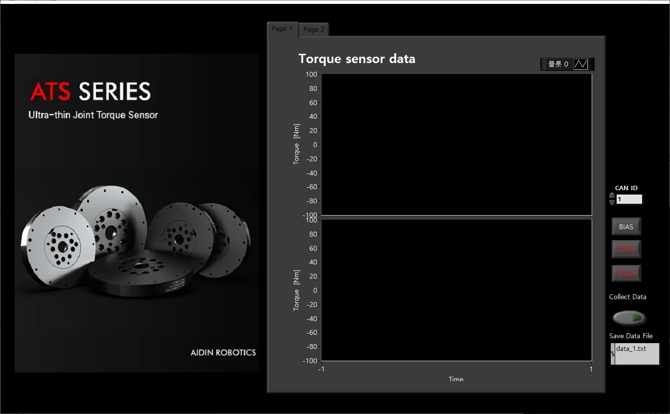
- Pop-up screen when running sample program
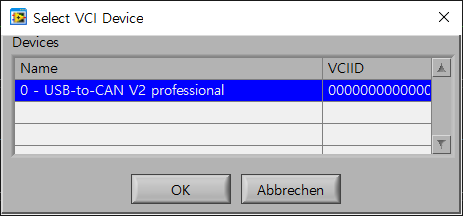
1. Select VCI Device Select your device.
Devices currently connected to the PC are displayed in a list. Click the applicable device and press the OK button.
※ The sample program was created based on IXXAT’s USB-to-CAN converter.
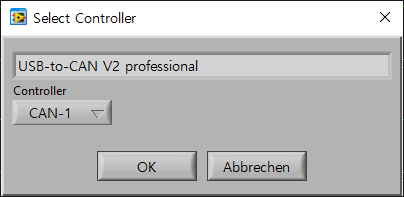
2. Select Controller
The device name selected in the previous step will be displayed. Select the controller channel below and press the OK button.
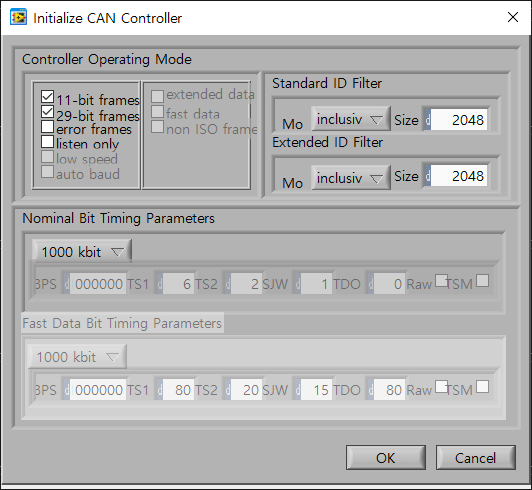
3. initialize CAN Controller
This is the step to initialize the controller selected in the previous step. Check the frame and baud rate and press the OK button.
- Sample program interface description
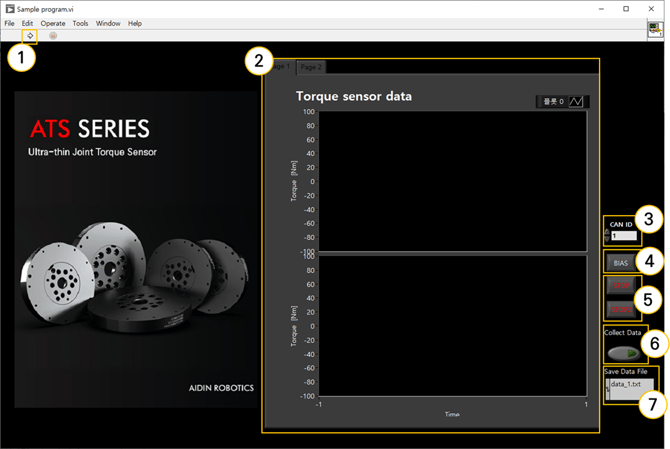
① Program run
Run the sample program. It runs automatically the first time you run it, and after STOP, you can run it by pressing the run button.
② Graph plot
You can check real-time torque (Tz) data in a graph.
③ CAN ID
Set the CAN ID of the connected sensor. If there is more than one ID, enter the lowest ID.
ex) In case of 0x10(16), 0x11(17), enter 16 in decimal.
④BIAS
The value is initialized to 0 based on the current torque value. By eliminating installation and attachment factors, the desired force value can be measured.
⑤STOP
Exit the program. Press both STOP buttons and the program ends 3 seconds later.
⑥ Collect Data
Save the torque data log. Please refer to the explanation regarding data storage on the page below.
- Save data log
1. Set storage directory
The file name is saved with time in the current directory of the sample program.
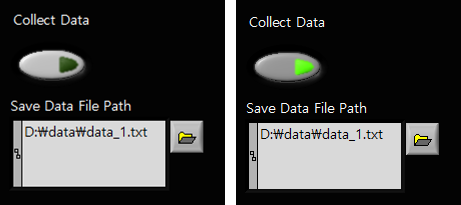
2. Data log storage
Click the button below Collect Data to start saving. When saving, the button appears in fluorescent color. To end saving, press the same button to end it. Data is stored cumulatively in files, so it is recommended that you specify a new file for each save.
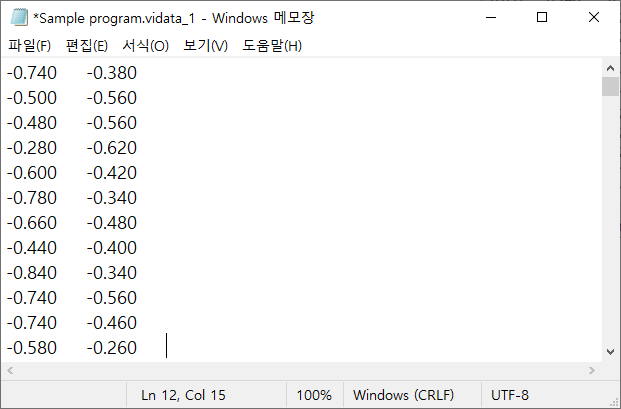
3. Check data log
You can check the saved torque data by opening the file in the directory. (Unit Nm)
[**^ Go to first page**](https://help.aidinrobotics.co.kr/en/joint-torque-sensor-atsb#Go-to-Firstpage-ATSB)
- [Full Manual](https://help.aidinrobotics.co.kr/en/full-manual?hsLang=en)
- [Install Guide](https://help.aidinrobotics.co.kr/en/install-guide?hsLang=en)
[](https://help.aidinrobotics.co.kr/help?hsLang=en)
**(주)에이딘로보틱스, AIDIN ROBOTICS Inc.**
5F, 12-20, Simin-daero 327beon-gil, Dongan-gu, Anyang-si,Gyeonggi-do, South Korea (14055)
영업/마케팅/PR: [sales@aidinrobotics.co.kr](mailto:sales@aidinrobotics.co.kr) | 채용문의: [hr@aidinrobotics.co.kr](mailto:hr@aidinrobotics.co.kr) | 기업문의: [info@aidinrobotics.co.kr](mailto:info@aidinrobotics.co.kr) | Tel: +82-31-360-7926
Copyright @ AIDIN ROBOTICS 2024 I [개인정보처리방침](https://www.aidinrobotics.co.kr/privacypolicy)